
Overview of workflows
Workflow provides roles, content moderation, an approvals view, preview links, scheduled publishing and service contacts.
To use them you need LocalGov Workflow which is included in LocalGov Drupal, but not switched on. Talk to your developer about enabling it.
How to use
Watch this video tutorial guide from content designer Ben Hills-Jones.
Checking if Workflow is enabled
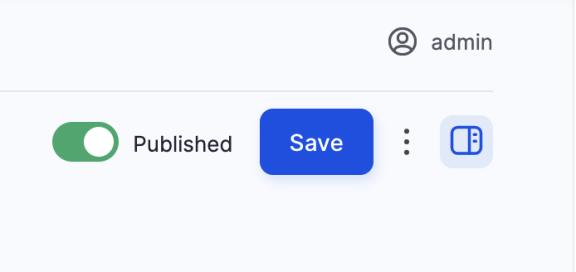
There's an easy way to check if Workflow is enabled on your site. If you see a 'Published' toggle and a 'Save' button, Workflow is not enabled.
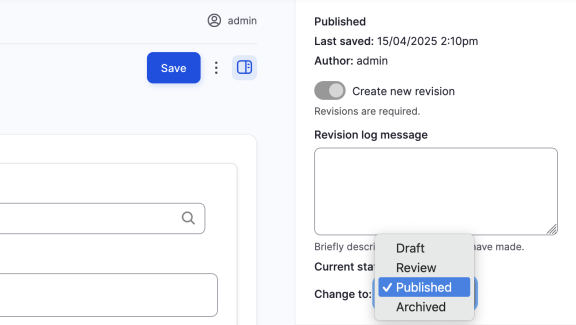
If you see a 'Current state' drop down menu in the sidebar, Workflow is enabled. Click 'Save' to save the page in the selected state.
Workflow concepts
- Role: A named set of permissions that can be applied to a user account. Depending on your role and your site's custom configuration, you may not be able to do all the actions on this page.
- Revision: Drupal lets you create a new revision every time a piece of content is updated. This allows you to track how the piece of content has changed over time on your site. Read more on drupal.org. One version will be the current revision, indicating which version is available to logged out users.
- State: A revision can exist in one of a number of states (Draft, Needs review, Published, Archived). If the current revision is Published it is available to logged out users.
- Transitions: Moving the current revision from one state to another is called a transition. We can do this manually by setting the state when we save a piece of content, or we can schedule a time for it to happen automatically.