How to set up scheduled publishing
'Scheduling' allows you to publish or unpublish content at a specific date and time, so you don't have to stay up late!
This needs a submodule called 'LocalGov Review Date'. It's included in LocalGov Drupal, but is not switched on - talk to your developer about enabling it.
How to publish content on a specific date
- Create a piece of content and leave it in either "Draft" or "Needs review".
- Click the 'Scheduling' tab.
- Click 'Add Schedule' button.
- Leave the 'latest revision' revision selected.
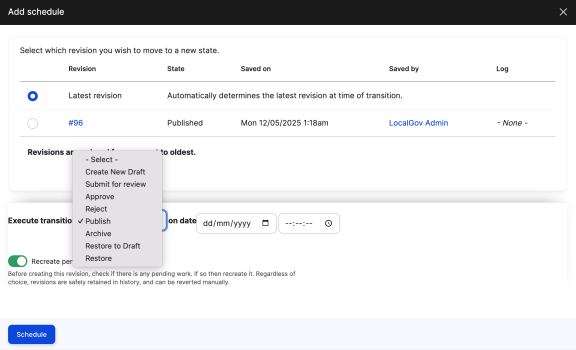
- On the 'Execute transition dropdown' select the 'Publish' option.
- Set the date and time you want.
- Click the 'Schedule' button when done.
How to unpublish content on a specific date
- Create a piece of content and Publish it.
- Click the 'Scheduling' tab.
- Click 'Add Schedule' button.
- Leave the 'latest revision' revision selected.
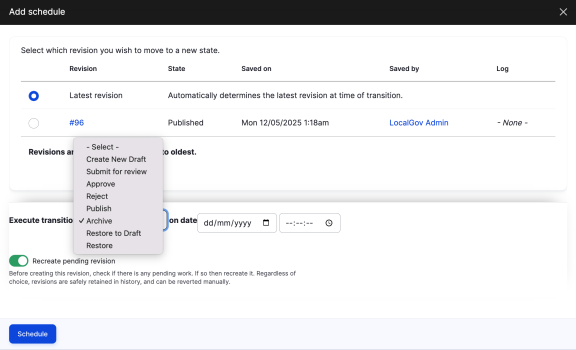
- On the 'Execute transition dropdown' select the 'Archive' option.
- Set the date and time you want.
- Click the 'Schedule' button when done.
How to publish a new version of a piece of published content on a specific date
1. Create the two versions:
- Create a piece of content and publish it
- Edit the content to create the new version and save it as Draft or Needs Review
2. Create a transition to unpublish the first version:
- Click the 'Scheduling' tab
- Click 'Add Schedule' button
- Select the currently published revision
- On the 'Execute transition dropdown' select the 'Archive' option
- Set the date and time you want
- Click the 'Schedule' button when done
3. Create a transtion to publish the second version:
- Click 'Add Schedule' button
- Select the version that you want published in the future
- On the 'Execute transition dropdown' select the 'Publish' option
- Set the date and time you want
- Click the 'Schedule' button when done
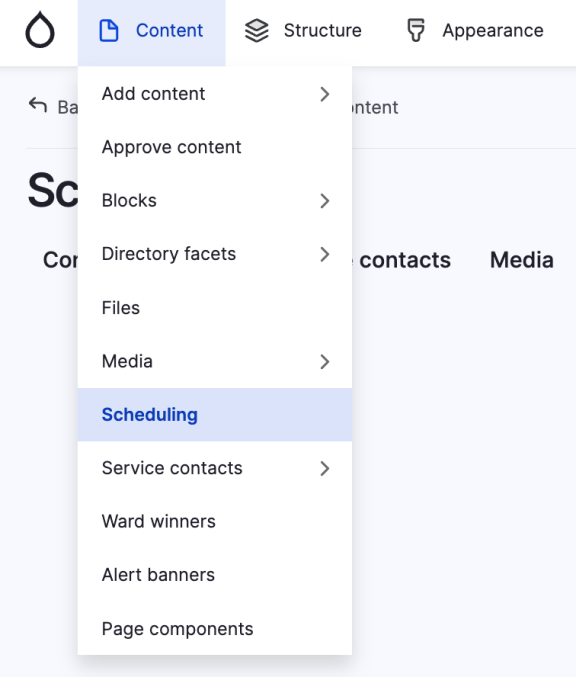
Manage all scheduled content
To see and manage all current scheduled content, click on Content > Scheduling. Here you can review, delete or reschedule any of the transitions.