
Creating a sample directory
In this guide we'll step through the process to create a Directory of secondary schools using features which come out-of-the-box with LocalGov Drupal.
Creating the Facet types
We'll create two Facets types which allow users to filter secondary schools by the type of school and the age range.
Once you've logged in navigate to the Facets types overview page via the menu items Content > Directory Facets > Add directory facet type
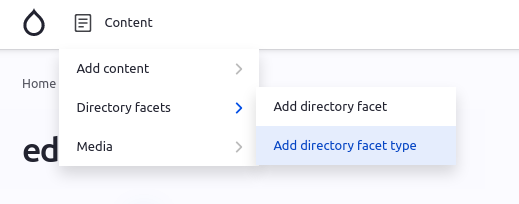
From this screen, enter 'Age' into the Label field and click Save directory facets type. You'll be taken to the types overview page where you can see your new type.
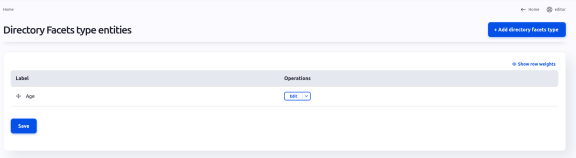
From here, click Add directory facets type button to create another. This time, enter 'Location' into the Label field and click the save button.
Creating the Facets
With our Types in place, it's time to create the Facets which users can use to filter our list of schools. Using the admin menu, choose Content > Directory Facets > Add directory facet.
From the next screen choose the previously created Age Type and, finally, enter '11 to 16 years' into the Title field and click the Save button. You'll be taken to the Facet overview screen.
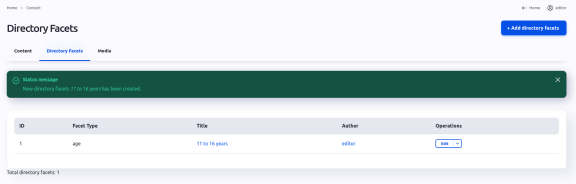
From here, click the Add directory facets button and repeat the process until you have the following:
| Age | Location |
|---|---|
| 11-16 years | North Somewhere |
| 11-18 year | South Somewhere |
The directory channel
Next up let's create a 'Channel'. Remember, the purpose of this channel is to allow users to filter a list of secondary schools by age and location so they can find a school which meets their criteria. Here we're going to make use of the Directory organisation content type, that comes out-of-the-box with LocalGov Drupal, to represent a school.
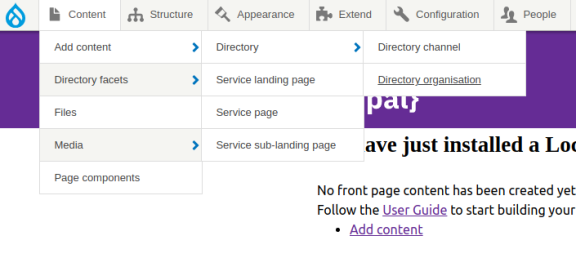
Using the admin menu, navigate to Add content > Directory > Directory channel:
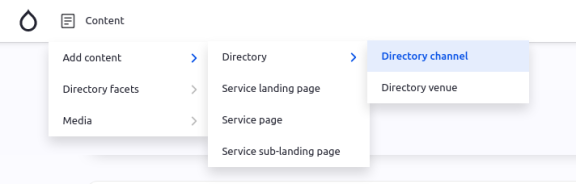
From this screen, enter 'Secondary schools' into the Title field and then scroll down the page and check all the boxes under Enabled Content types and Enabled facets.
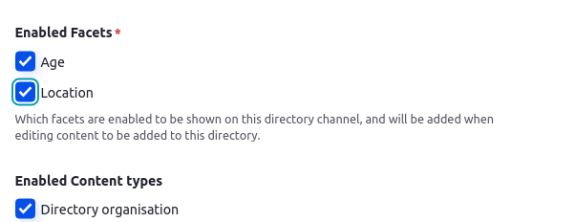
Finally, click Save to create your new Channel.
Directory items
With the Channel and Facets in place we are ready to start creating some Directory Items, in this case secondary schools.
Using the admin menu, navigate to Add content > Directory > Directory organisation:
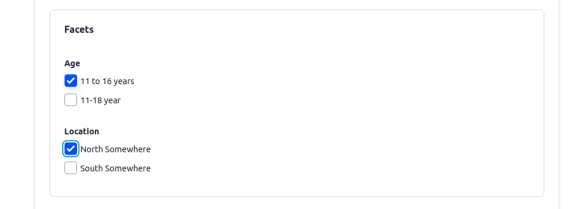
From here, enter 'Example high school' into the Title field then select the Channels and facets tab. After selecting 'Secondary schools' as the Primary Channel you will be presented with some Facets for selection. Choose some Facets, in this case it probably doesn't make sense to have more than one Facet per Type:
Item location
Finally, we can harness the power of the LocalGov Drupal location integration so users can browse the schools by using a map interface. Open the Venue tab and click the Select location button. From the popup, choose the Create new address tab. Populate the fields within the Address tab with an address familiar to you:
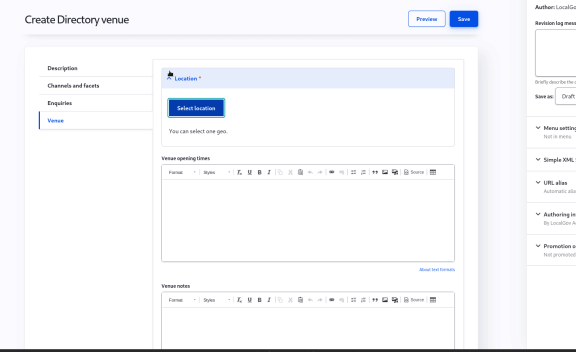
The address should autocomplete if your site is configured to do so, and it will place the point on the map. If this is incorrect, or not found, you can place the point manually.
Finally, scroll to the bottom of the popup and click the Save address button and then save the venue.
You'll probably want to repeat this process a few times, choosing different combinations of Facets and different addresses, in order to better understand how Directories work.
Using the Channel
With your newly entered Directory Items it's time to experiment with the Channel to see what it can do. Navigate to the content overview page via the admin menu. From here, you'll be able to see your Channel and Items. Click on the Channel name to view the Channel page:
As you'll see, by choosing Facets and entering a location the Directories module has automatically generated the filters and map visualisation. Try selecting different facets to see how it effects the listed schools.